
Zapier Facebook Lead Ad and RingBot Automation Setup Guide
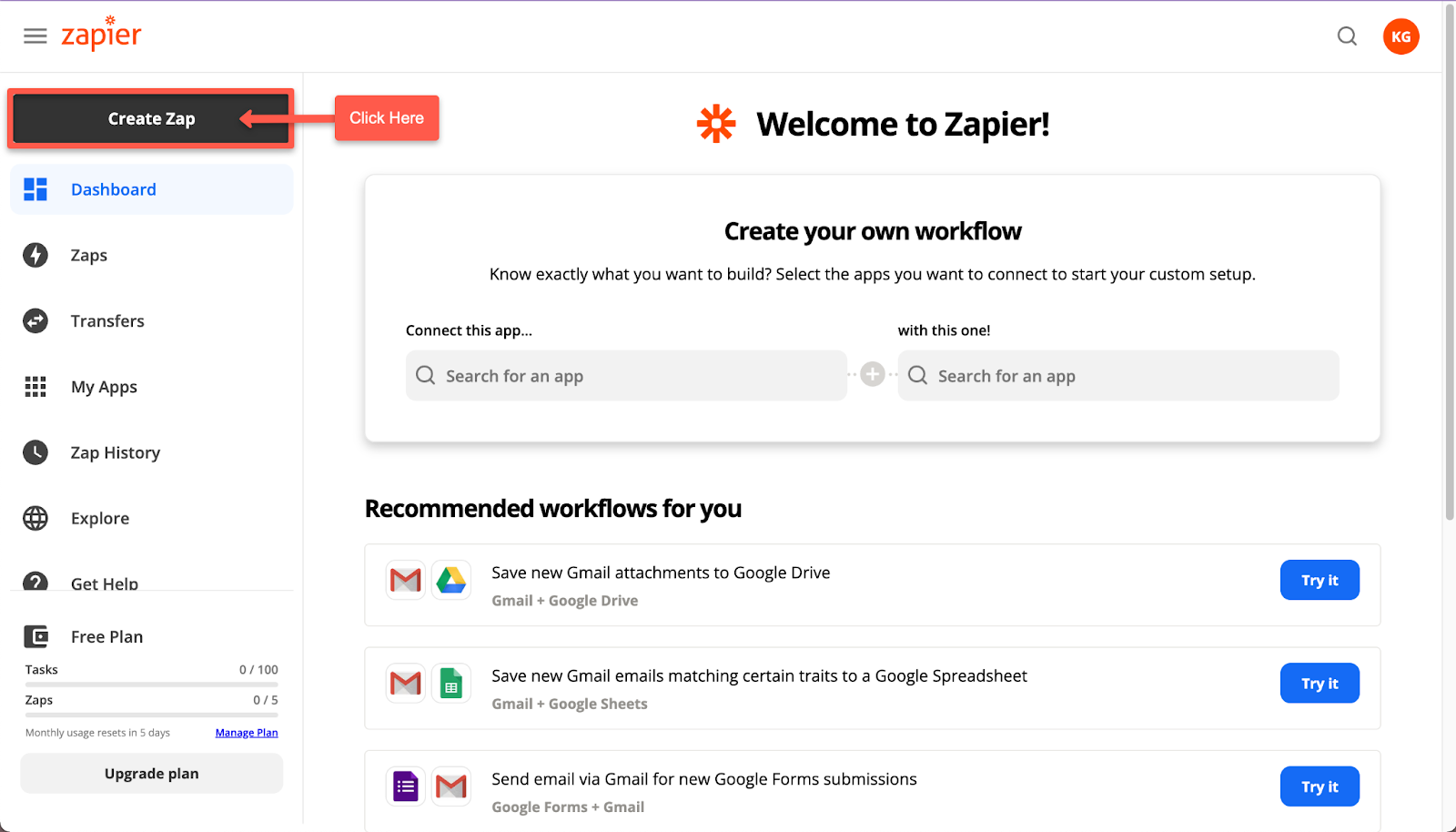
Step 1: Click on Create Zap
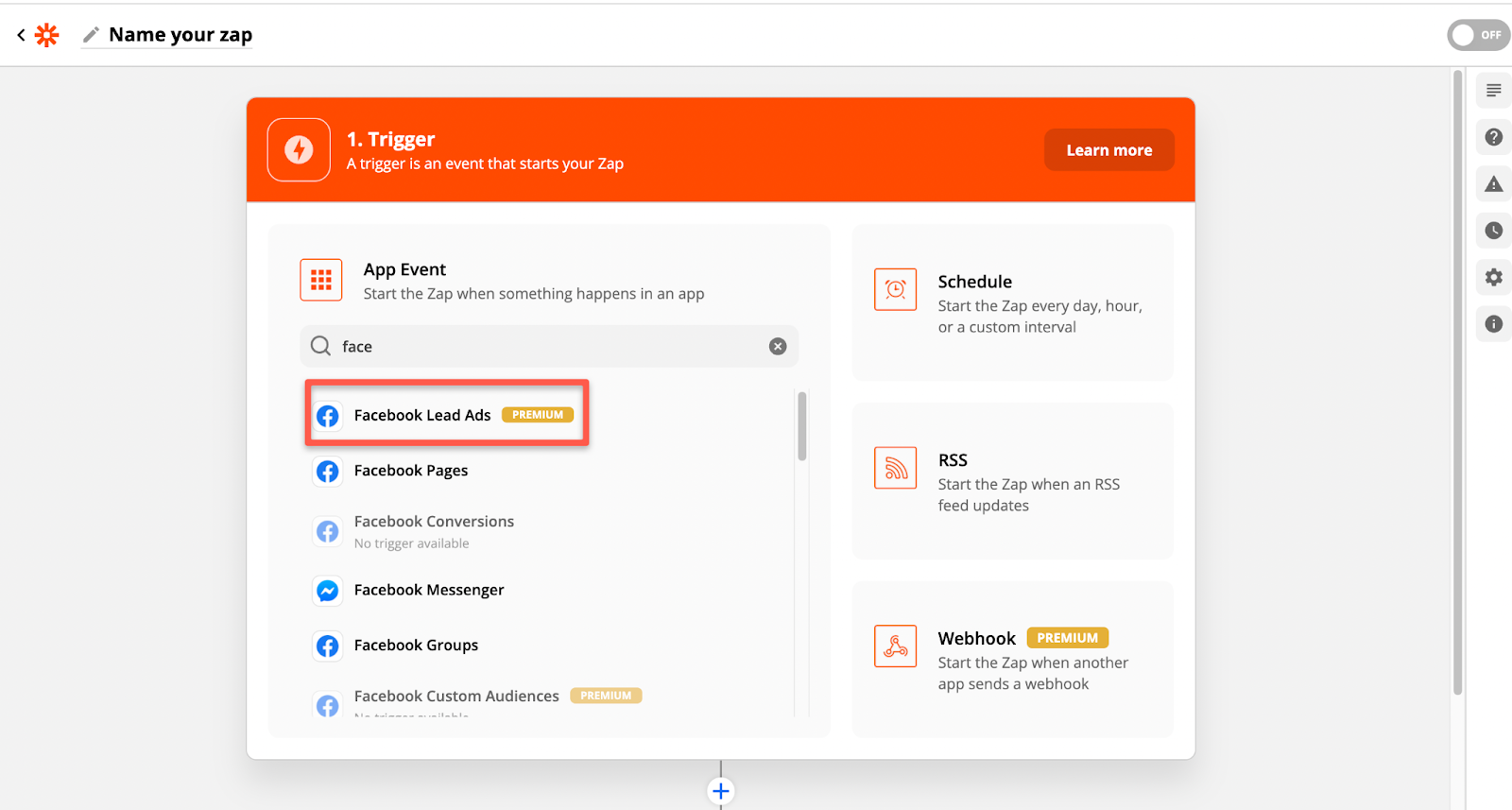
Step 2: Trigger
Search for your app event
Facebook Lead Ads
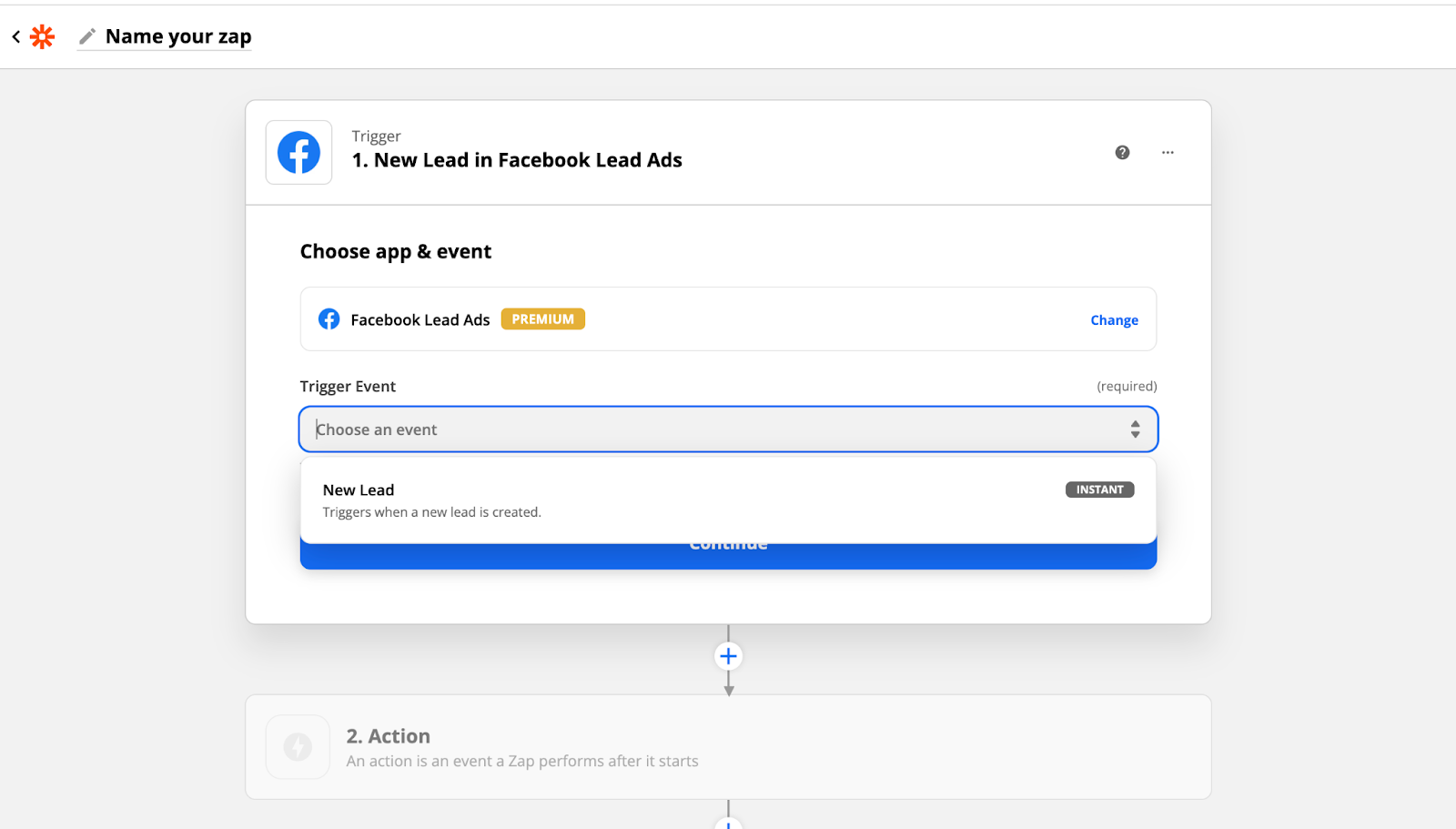
Step 3: Select Trigger Event
New Lead
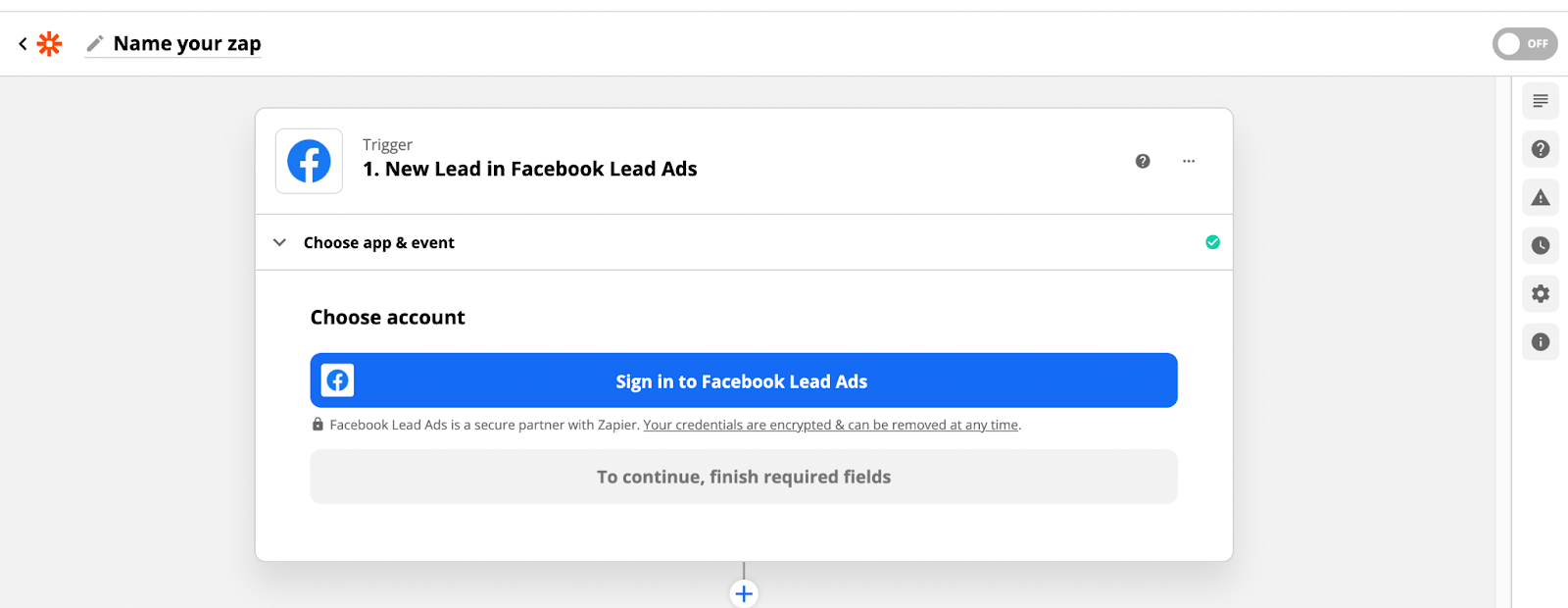
Step 4: Choose Account
Login to the Facebook Account
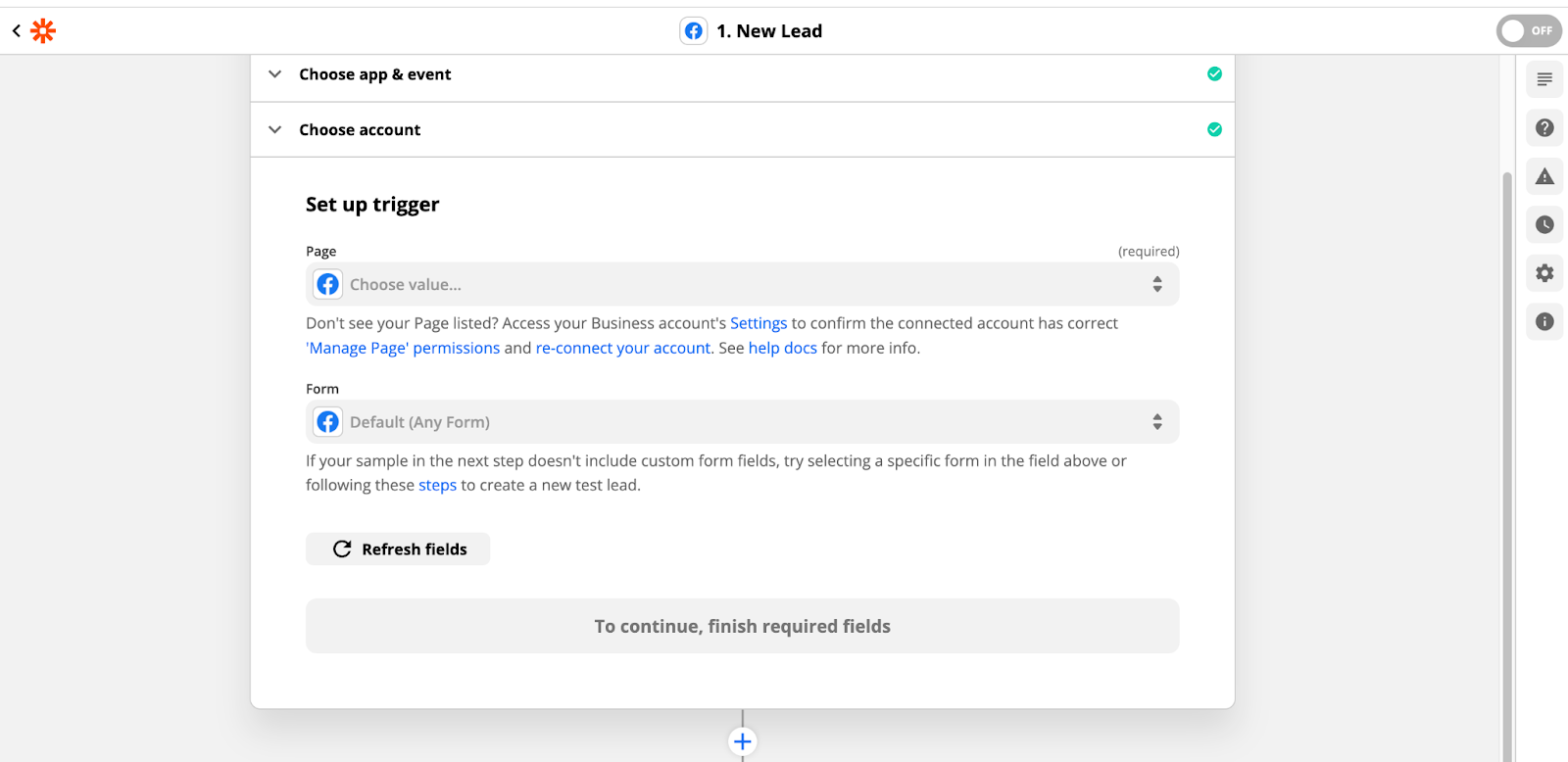
Step 5: Set up Trigger
Choose the Page
Choose the Form
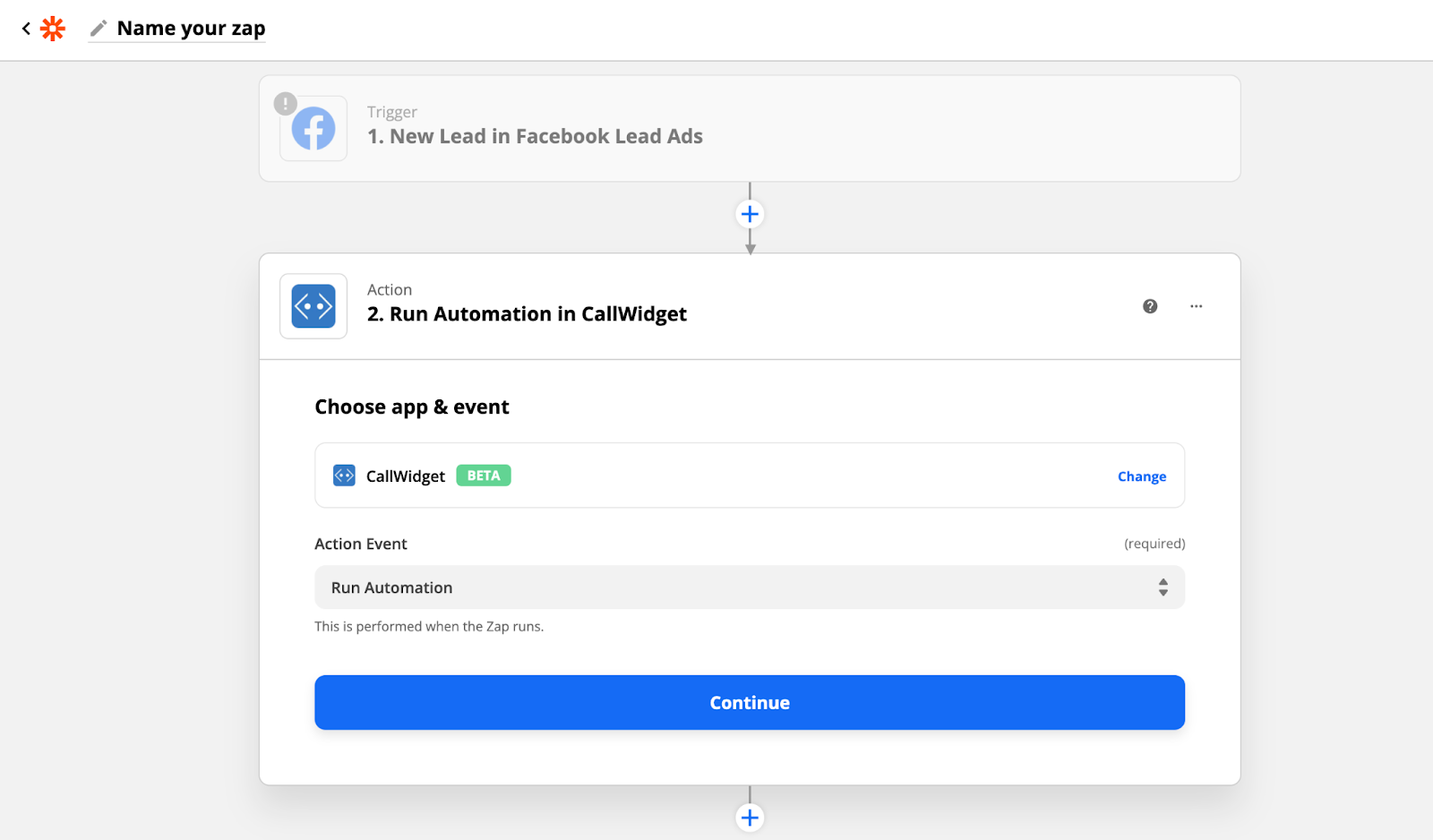
Step 6: Select Action
Search CallWidget

Step 7: Choose Action Event
Run Automation
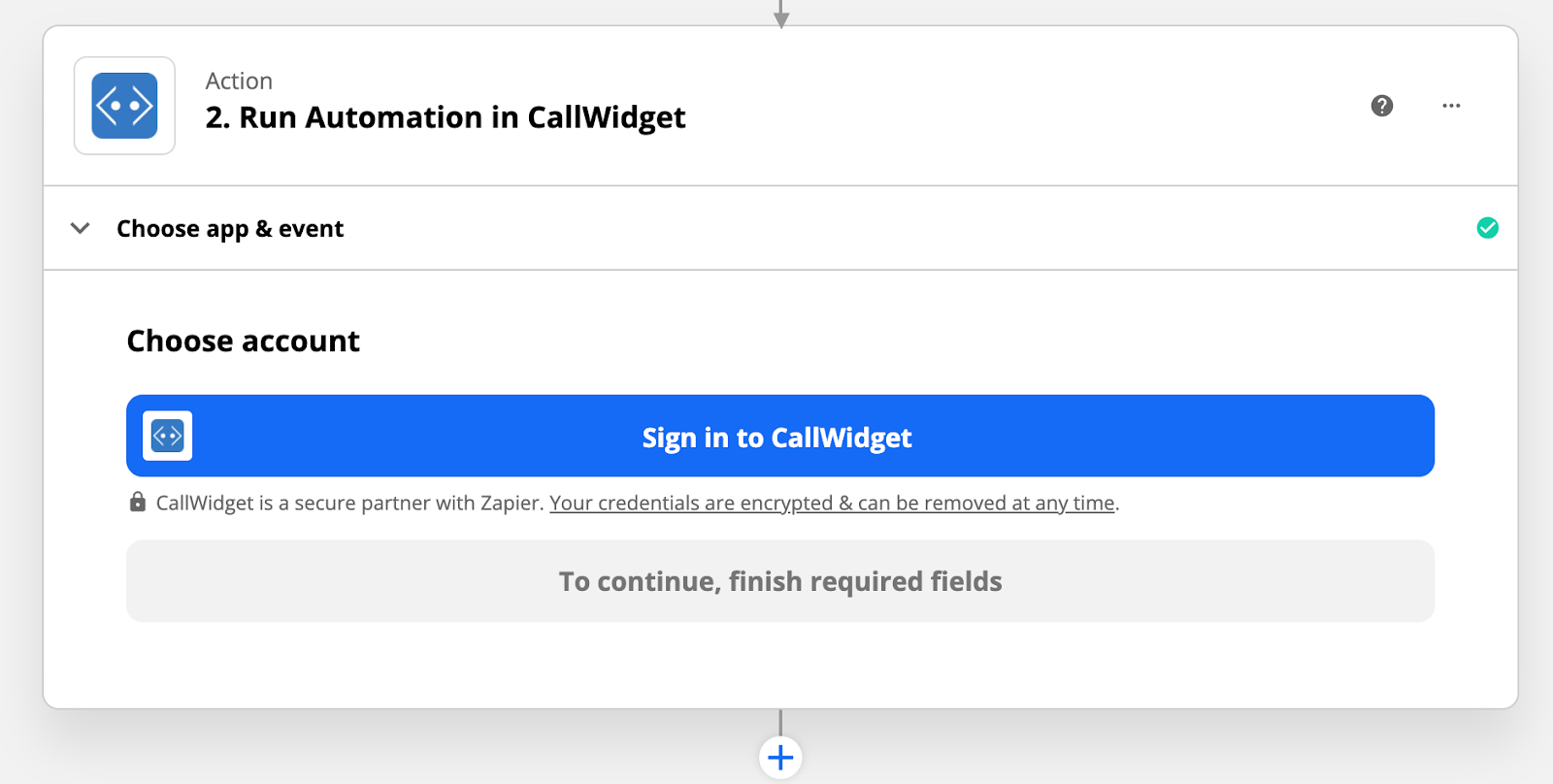
Step 8: Connect CallWidget for the Business Account that you will be using the Zap in.
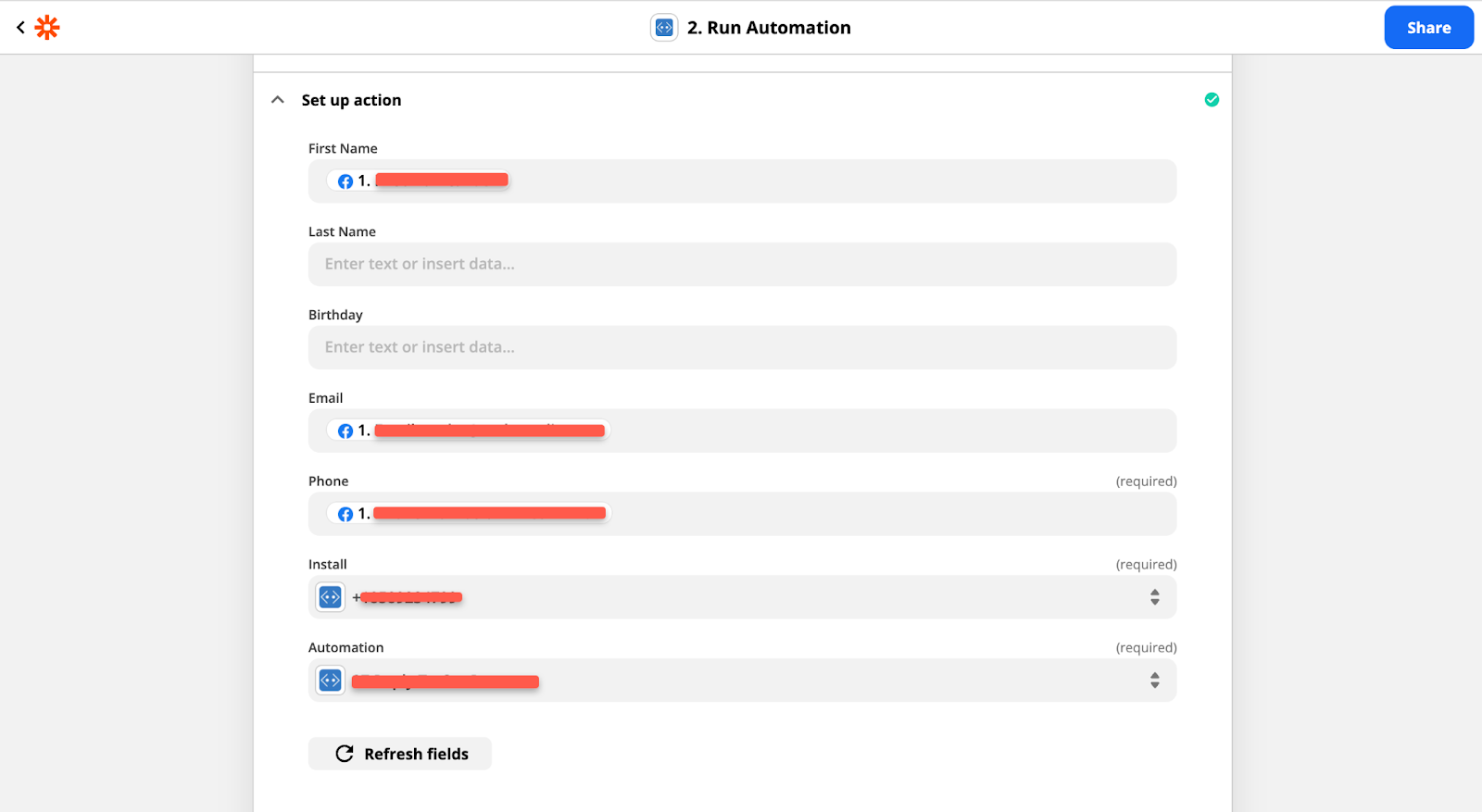
Step 9: Setup Action (Skip and go to Step 10 if you have not set up your automation)
First Name
Email
Phone
Install
Automation
Step 10: Login to the business account and go to automations

Step 11: Click the New Automation Button to Start Your Automation

Step 12: Choose Keyword Text Message as your Trigger

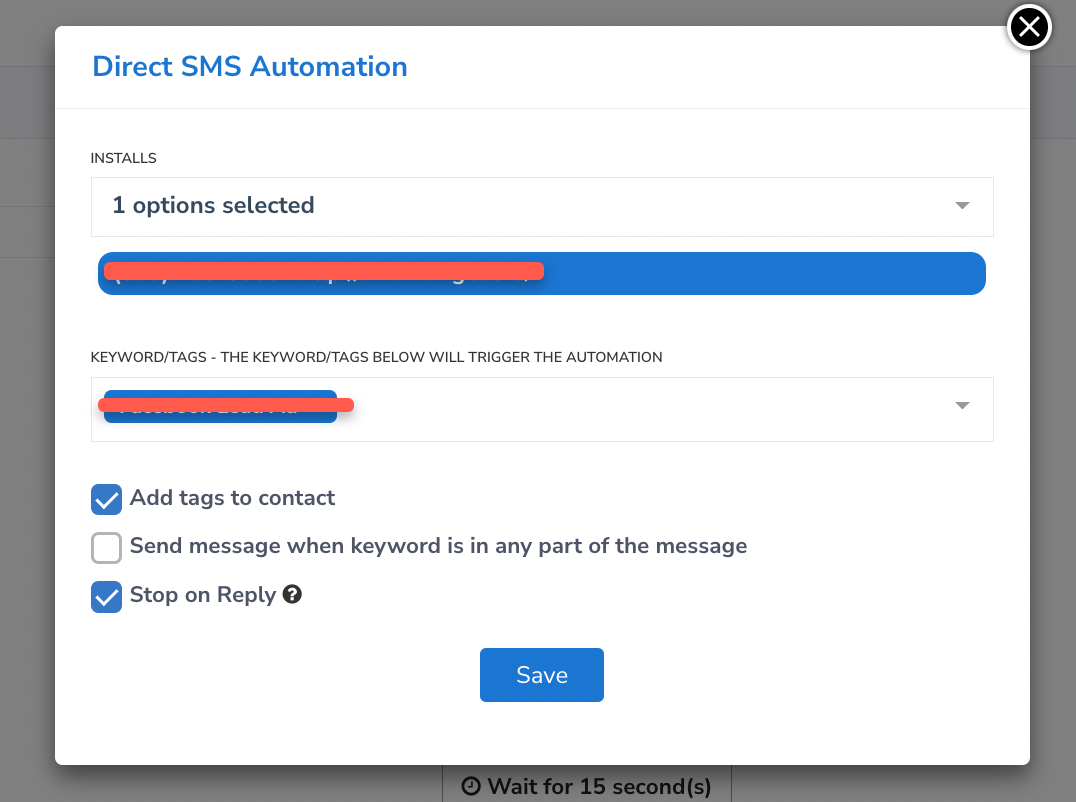
Step 13: Choose the following:
Install
Keyword tag - Facebook Lead Ad (If you don’t have this go to settings and tags to add the keyword)
Select your preferences
Add tags to contacts
Send message when keyword is in any part of the message
Stop on Reply
Step 14: Set up Automation to send one of the following:

Step 15: Name the Automation (Facebook Lead Ad) and Save Automation.
If you need to finish you zap return to step 7